

Imagine you publish your application to Docker Hub. Your workflow needs to log in with a password. Where do you put it?
Your workflows often need sensitive information:
- a token to deploy;
- a database password;
- an API key for an external service;
- cloud credentials (AWS, GCP, Azure).
That information must never live in your code. It is rule number one of GitHub Actions security.
Why not put secrets in the code?
The classic beginner mistake
# ❌ NEVER DO THIS, not even "just to test quickly"- run: docker login -u admin -p "MyPassword123"What actually happens
You may be thinking: "it is only my personal repository, nobody is looking." Here is the reality:
| What you think | What actually happens |
|---|---|
| "My repository is private" | Collaborators and CI tools see everything |
| "I will delete it afterwards" | The password stays in the Git history forever |
| "Nobody is looking for that" | Bots scan GitHub around the clock and find secrets within minutes |
| "I can make a private fork" | If someone forks your repository, they have your password |
Real attacks
In 2023, security researchers found more than 12,000 valid AWS keys exposed on GitHub. Most of them belonged to developers who made the "just for testing" mistake.
The answer: GitHub secrets
What is a GitHub secret?
A GitHub secret is a special variable stored in an encrypted vault. Think of it as a password manager built into GitHub, designed specifically for your workflows.
How does it protect your data?
GitHub applies several layers of protection:
| Protection | What it does |
|---|---|
| Encryption at rest | Secrets are encrypted with a key unique to each repository |
| Automatic masking | If a secret shows up in the logs, it is replaced by *** |
| Isolation | A workflow cannot read the secrets of another repository |
| Partial audit | The log records the creation, update and deletion of a secret, never its read by a workflow |
The flow: from vault to workflow
Here is what happens when your workflow uses a secret:
-
You create the secret in Settings, then Secrets and variables, then Actions
-
GitHub encrypts it and stores it in its vault
-
Your workflow starts and requests the secret
-
GitHub decrypts it and injects the value into the environment variable
-
Your script uses it without the value ever appearing in clear text in the logs
A concrete example
# Your workflow- run: docker login -p ${{ secrets.DOCKER_TOKEN }}
# What shows up in the GitHub logsdocker login -p ***
Even if your script echoes the secret by mistake, GitHub masks it.
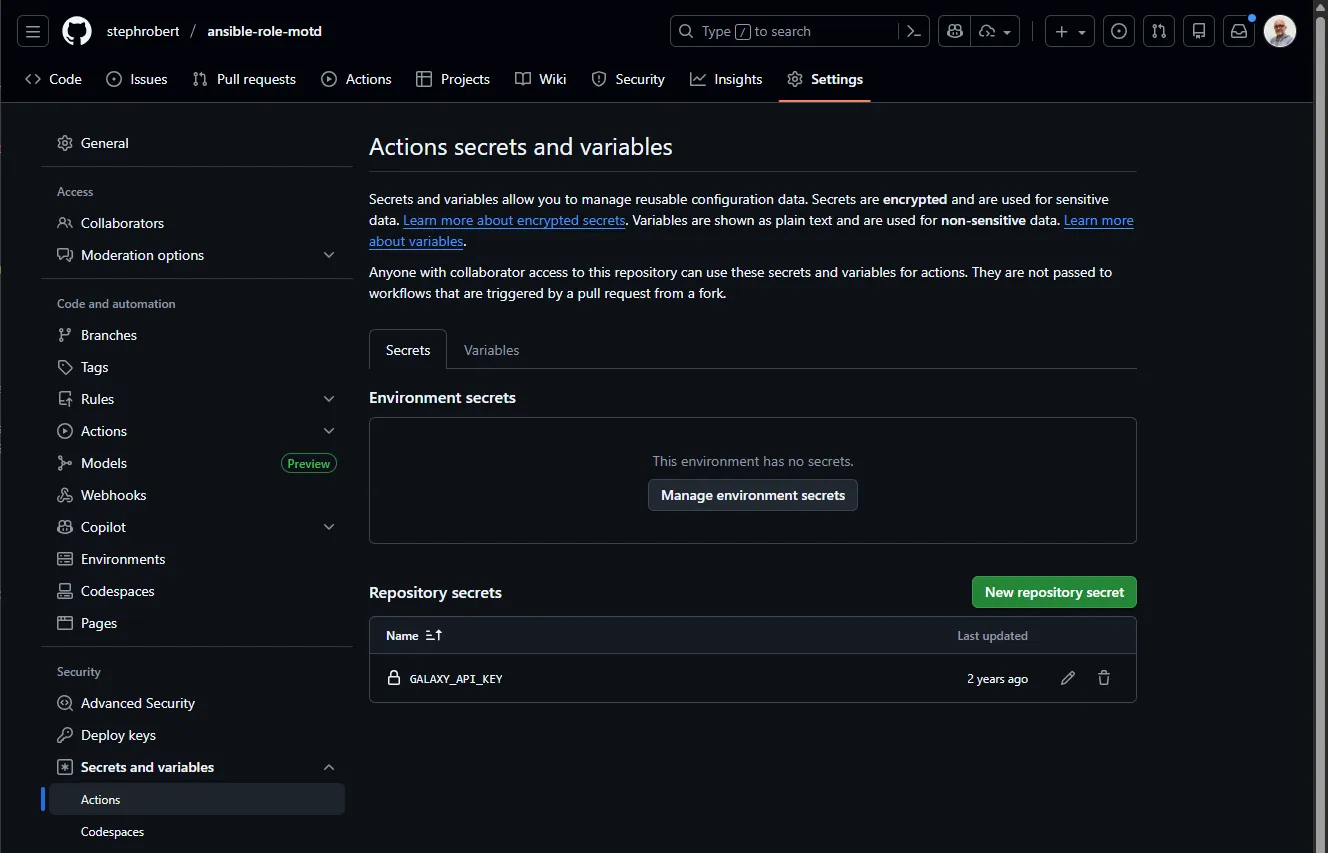
How to create a secret
-
Go to your GitHub repository
-
Click Settings (the top tab, visible only if you hold admin rights)
-
In the left menu: Secrets and variables, then Actions
-
Click New repository secret
-
Fill in the fields:
- Name: the name of your secret (for example
DOCKER_TOKEN) - Secret: the value (the password, the API key, and so on)
- Name: the name of your secret (for example
-
Click Add secret
How to use a secret
In your workflow, reference a secret with ${{ secrets.NAME }}. The good
practice is not to interpolate it directly into the command, but to pass it
through an environment variable (env:). The secret stays out of the command
line, and therefore out of the runner's process list.
jobs: deploy: runs-on: ubuntu-24.04 steps: - name: Log in to Docker Hub run: echo "$DOCKER_TOKEN" | docker login -u "$DOCKER_USER" --password-stdin env: DOCKER_TOKEN: ${{ secrets.DOCKER_TOKEN }} DOCKER_USER: ${{ secrets.DOCKER_USER }}Traps to avoid
The first example does not leak the value into the logs, where GitHub writes
***: it leaks it into the command line of the process, readable by
anything running on the runner. The second keeps it in the step's
environment and hands it to docker login through standard input.
Secrets and forks: a security matter
By default, secrets are not available in workflows triggered by forks. That is an important protection.
Why? Imagine an attacker forks your repository and modifies the workflow to print every secret. If they were available, the attacker would see them.
| Context | Secrets available? |
|---|---|
| Push on your branch | Yes |
| PR from a branch of the repository | Yes |
| PR from a fork | No (by default) |
| Manual workflow triggered by a collaborator | Yes |
Secrets versus variables: what is the difference?
GitHub offers two configuration mechanisms. Choosing the right one matters for security.
The decision table
| Question | Secret | Variable |
|---|---|---|
| Is it confidential? | Yes (passwords, tokens, keys) | No (versions, public URLs) |
| Visible in the logs? | No (masked as ***) | Yes (in clear text) |
| Changeable without redeploying? | Yes | Yes |
| Can you read the current value? | No, never | Yes |
Concrete examples
| Value | Type | Why |
|---|---|---|
| Docker Hub token | Secret | It allows publishing images |
| Database password | Secret | Access to the data |
| Stripe API key | Secret | Access to payments |
| Node version | Variable | Not sensitive, useful to see in the logs |
| Staging URL | Variable | Public anyway |
| Kubernetes cluster name | Variable | Technical information, not a secret |
Creating and using a variable
Same place as secrets, but under the Variables tab:
Repository → Settings → Secrets and variables → Actions → Variablesjobs: build: runs-on: ubuntu-24.04 steps: - name: Print the configuration run: | echo "Node version: ${{ vars.NODE_VERSION }}" echo "Environment: ${{ vars.ENVIRONMENT }}"The three levels of configuration
You can define secrets and variables at three levels. They stack like environment variables: the most specific one wins.
Overview
| Level | Scope | Use case |
|---|---|---|
| Organisation | Every repository of the organisation | A Docker Hub token shared by the team |
| Repository | A single repository | A deployment key specific to the project |
| Environment | One environment of the repository | Production versus staging database credentials |
Resolution order
If a secret exists at several levels, GitHub uses the most specific one:
Environment > Repository > OrganizationFor example: if DATABASE_URL exists at organisation level and at environment
level, the environment value is the one used.
Environments: security through isolation
Environments are a powerful mechanism for isolating your secrets by deployment context.
Why does it matter for security?
- Production secrets are never exposed to development code
- You can require a manual approval before production secrets are reachable
- A workflow compromised in staging cannot reach production
Example: same name, different values
jobs:  deploy-staging:    runs-on: ubuntu-24.04    environment: staging  # Uses the "staging" secrets    steps:      - run: deploy --url ${{ secrets.DATABASE_URL }}      # → DATABASE_URL = postgres://staging.db.example.com
  deploy-prod:    runs-on: ubuntu-24.04    environment: production  # Uses the "production" secrets    steps:      - run: deploy --url ${{ secrets.DATABASE_URL }}      # → DATABASE_URL = postgres://prod.db.example.com
The same secret name (DATABASE_URL), but different values depending on the
environment.
Protecting environments
For sensitive environments (production), add protections:
| Protection | What it does |
|---|---|
| Required reviewers | A human must approve the deployment |
| Wait timer | A mandatory delay before deployment (30 minutes, say) |
| Deployment branches | Only certain branches may deploy |
To configure them: Repository, then Settings, then Environments, then protection rules.
Security good practices
1. Name your secrets clearly
A good name says what it is and what it is for without opening the documentation.
| Good name | Poor name | Why |
|---|---|---|
DOCKER_HUB_TOKEN | TOKEN | You know it is for Docker Hub |
AWS_ACCESS_KEY_ID | KEY | A recognised AWS convention |
PROD_DATABASE_PASSWORD | PWD | You know it is for production |
STAGING_API_KEY | SECRET | You know the environment and the service |
2. Document your secrets
In your README or CONTRIBUTING file, list the required secrets without revealing their values:
## Required secrets
| Secret | Description | Where to find it ||--------|-------------|------------------|| DOCKER_TOKEN | Docker Hub token | hub.docker.com → Account Settings → Security || NPM_TOKEN | npm automation token | npmjs.com → Access Tokens → Generate || AWS_ACCESS_KEY_ID | IAM key (deployer) | AWS Console → IAM → Users → Security credentials |
3. Apply the principle of least privilege
Every token must carry only the permissions it needs. If a token is compromised, the damage must stay limited.
| Service | Minimal permission | Not this |
|---|---|---|
| Docker Hub | Read, Write (not Delete) | Admin |
| npm | Automation (publish only) | Publish plus manage packages |
| GitHub token | Fine-grained, limited to the target repositories | A classic PAT with the repo scope, which opens every repository |
| AWS | A restricted IAM policy | AdministratorAccess |
4. Rotate your secrets regularly
Tokens often have a limited lifetime, and that is a good thing. Plan their rotation:
- Short-lived tokens (90 days): safer, but more maintenance
- Long-lived tokens (one year): less maintenance, but riskier if compromised
5. Audit access to your secrets
Who has access to your secrets? Review it regularly:
- the repository collaborators (Settings, then Collaborators);
- the teams with access (for organisations);
- the installed GitHub Apps (Settings, then GitHub Apps).
6. Limit the persistence of GITHUB_TOKEN
By default, actions/checkout writes the GITHUB_TOKEN into the runner's local
Git configuration. If a later step uploads an artifact containing the .git
folder, that token leaks. Disable that persistence as soon as the rest of
the job has no need to push to the repository:
- uses: actions/checkout@3d3c42e5aac5ba805825da76410c181273ba90b1 # v7.0.1 with: persist-credentials: falseCommon errors and troubleshooting
"Secret not found"
Your workflow fails with an error saying the secret does not exist?
Possible causes:
- the name is misspelled (watch the case);
- the secret is defined for another environment;
- you are in a workflow triggered by a fork (secrets are not available);
- the secret sits at organisation level but the repository has no access to it.
The secret appears in clear text in the logs
If you see your secret in clear text:
- Revoke the compromised token or password immediately
- Check whether you encoded or transformed the secret (base64, JSON, and so on)
- Create a new secret with a new value
"Resource not accessible by integration"
This error means the GITHUB_TOKEN lacks the required permissions. It is not a
secrets problem but a
permissions one.
Check your understanding
Make sure the essentials of this guide are yours. The questions only cover what was explained here.
Knowledge check
Check what you have learned with this interactive quiz
How it works
- The timer starts when you click Start
- Multiple choice, true/false and short answer questions
- You can move between questions
- Detailed results are shown at the end
Starts the quiz and the timer
Review
(0/0)Skills profile
What to do next
Resources to go further
Hints before you try again?
A new full quiz with random questions
Work again only on the questions you missed
Key points
| Question | Answer |
|---|---|
| Where do passwords go? | In GitHub Secrets |
| Where does public configuration go? | In GitHub Variables |
| How do you read them? | ${{ secrets.NAME }} or ${{ vars.NAME }} |
| Where do you create them? | Settings, then Secrets and variables, then Actions |
| How do you isolate per environment? | With Environments |
| How do you protect production? | Required reviewers plus a wait timer |
Next steps
- Choosing Marketplace actions: the last foundation, evaluating the third-party code you run.
- GITHUB_TOKEN permissions: the deep dive on what the workflow token is allowed to do.
- OIDC: authentication without secrets: removing cloud secrets entirely rather than managing them.